Create a variant
Why use a variant?
Variants are a great way to optimize your process workflow and memory. It is especially useful not to duplicate a whole study just to change a handful of settings.
You create a main study and then you can apply some small changes on your inputs. Then you can explore the impact of some changes on your study.
You can even create a large number of variants using Antares Craft to programmatically explore multiple configuration quicky.
Note
From the point of view of the user, a variant behaves just like a duplication of the main study, you can see the parameters, time series, modify the settings... However, internally it is stored as a difference from the main study to avoid duplication.
Create a variant
To create variant of a study first open your study and then click on the Create new variant button in the bottom.
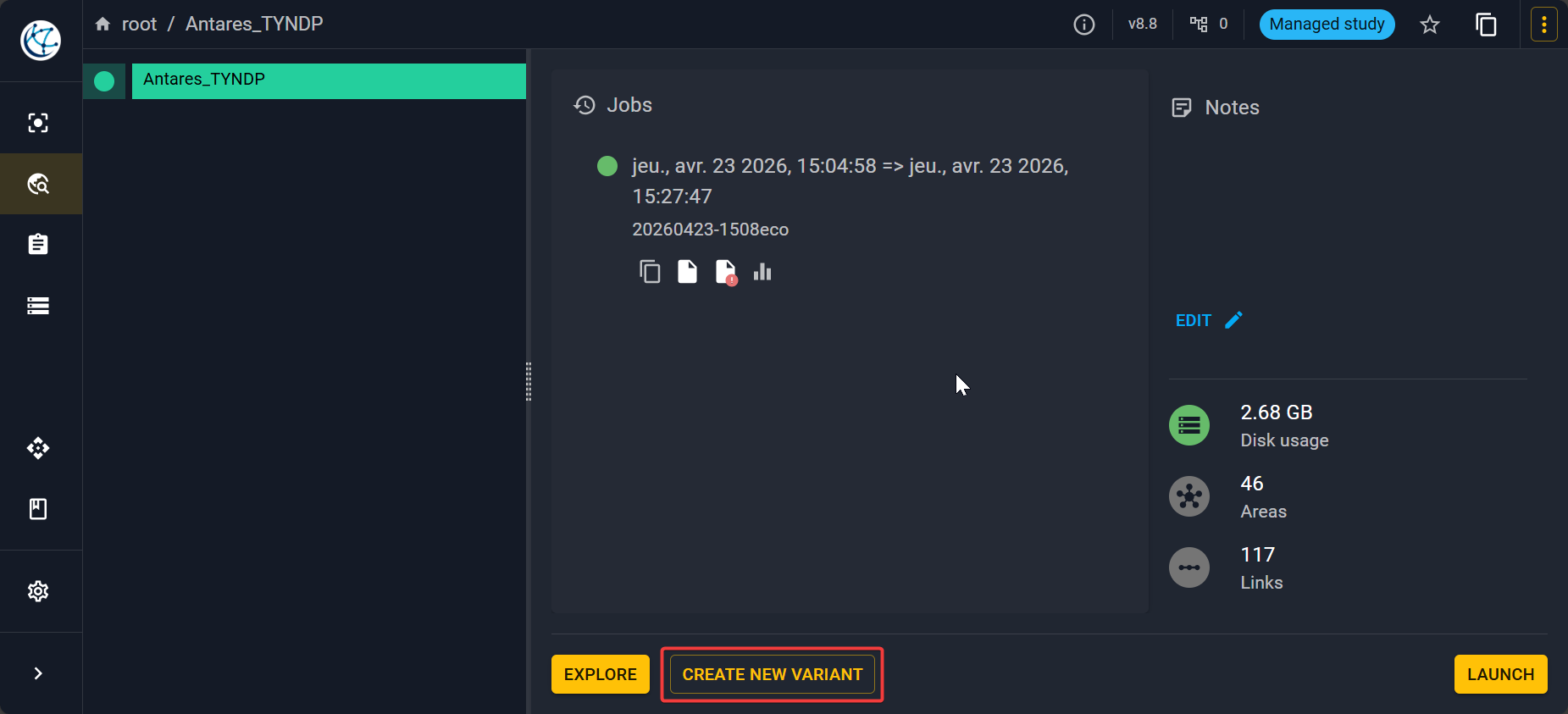
It will open a pop-up where you can fill the information that you want. Then the new variant will be displayed inside the Study variant tree.
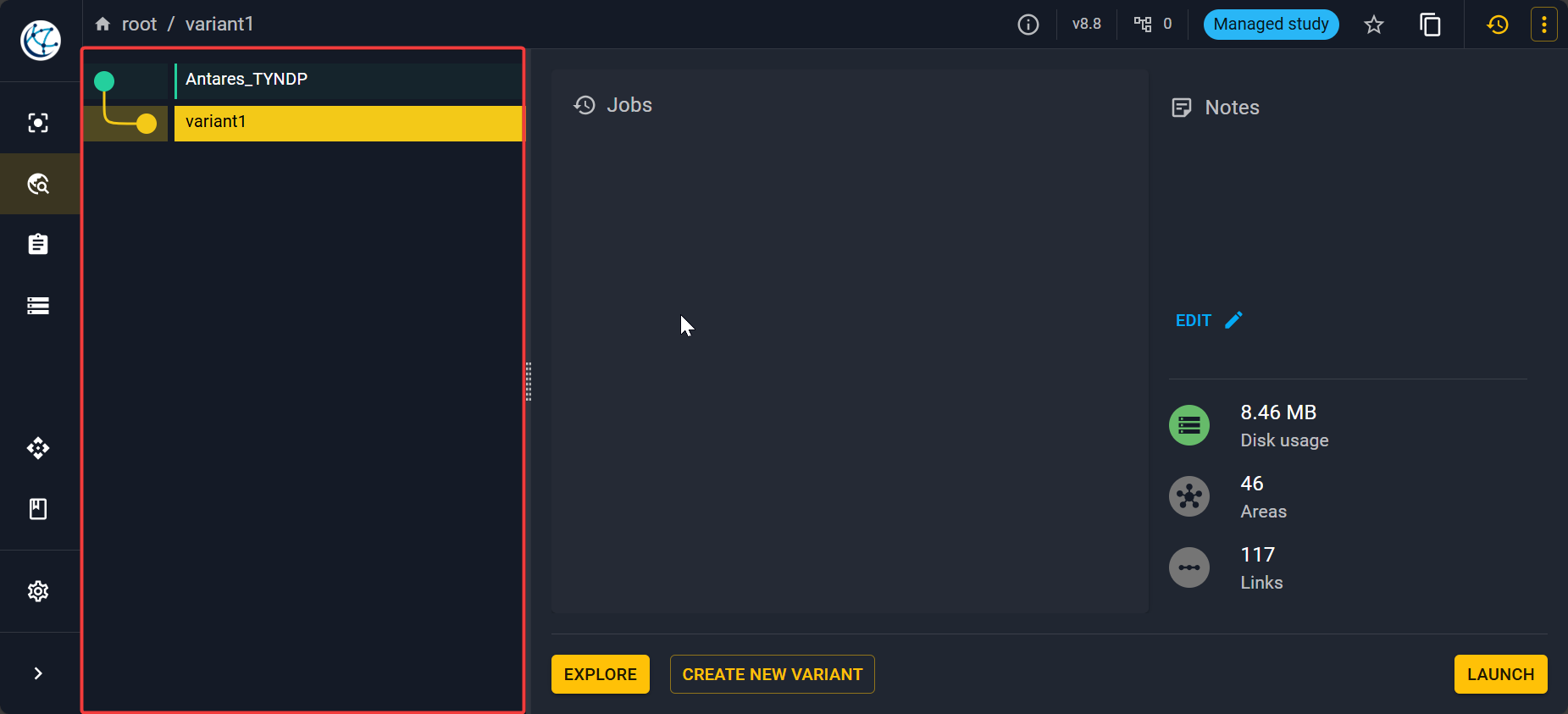
Then make sure you select the variant (or main study) and click explore to open the variant (resp. the main study).
Tip
You can create a variant of a variant and so on!
Note
Each variant has its own study ID.
Variant manager and command history
Variants are defined by the collection of commands which change it from the parent study. You can see and edit each of these commands by clicking on the in the top right of the screen.

This will open a history of all the changes made on the variant and all the calls made to the API:
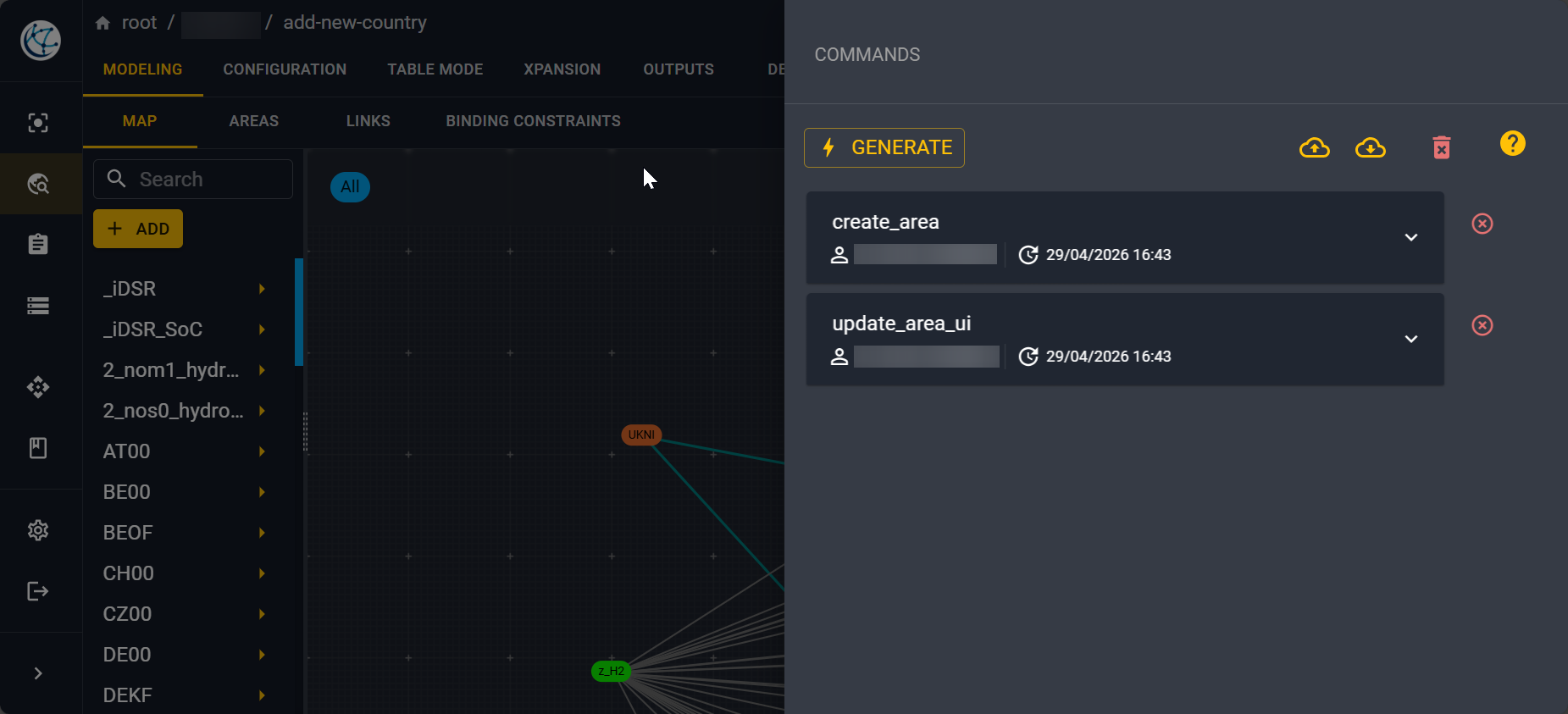
You can even access a JSON of the changes made on each command by expanding each API call.
Note
Edit on commands are inherited to child variants
Delete a variant
Select the variant you want to delete in the study variant tree, then click on the in the top left of your screen to show the dropdown menu. Then click on Delete.